
GIS files
Preserve child layers and features when handing an imported dataset to another tool.
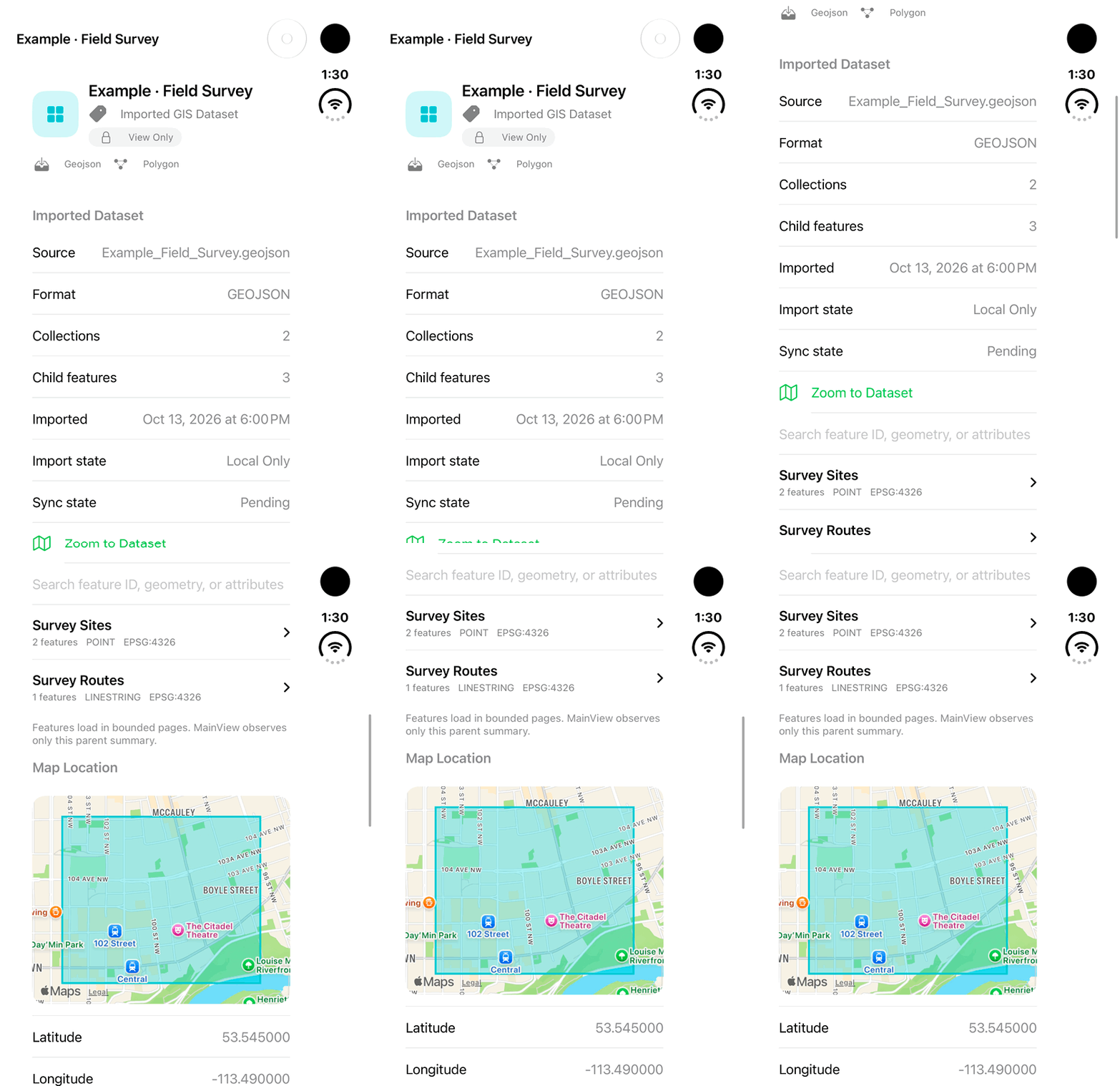
Walkthrough paused.
Follow the written steps or select Play walkthrough to watch the example.
iPhone Duo: review a View Only imported-dataset example and its hierarchy before attempting export. Export controls are absent in this recorded context; no archive, export, file save, reimport or permission change is demonstrated.Open the looping GIF
Follow along
One step at a time.
Preserve child layers and features when handing an imported dataset to another tool.
Open Export Data and Share
Open the imported Other Land and its export sheet.
Choose the complete format
Choose complete GeoPackage, Shapefile ZIP, Vector GeoPDF or Raster GeoPDF, or a Universal Dataset Archive where offered.
Save the complete package
Use the provided save action and retain all included companions.
Choose the right reopening path
Use GeoPackage for editable reimport. Open a read-only iLands Map Package for viewing rather than editing.