
Import and export GeoPackage
GIS files
Choose supported feature collections, inspect the imported dataset and export a complete package for the next handoff.
Walkthrough paused.
Follow the written steps or select Play walkthrough to watch the example.
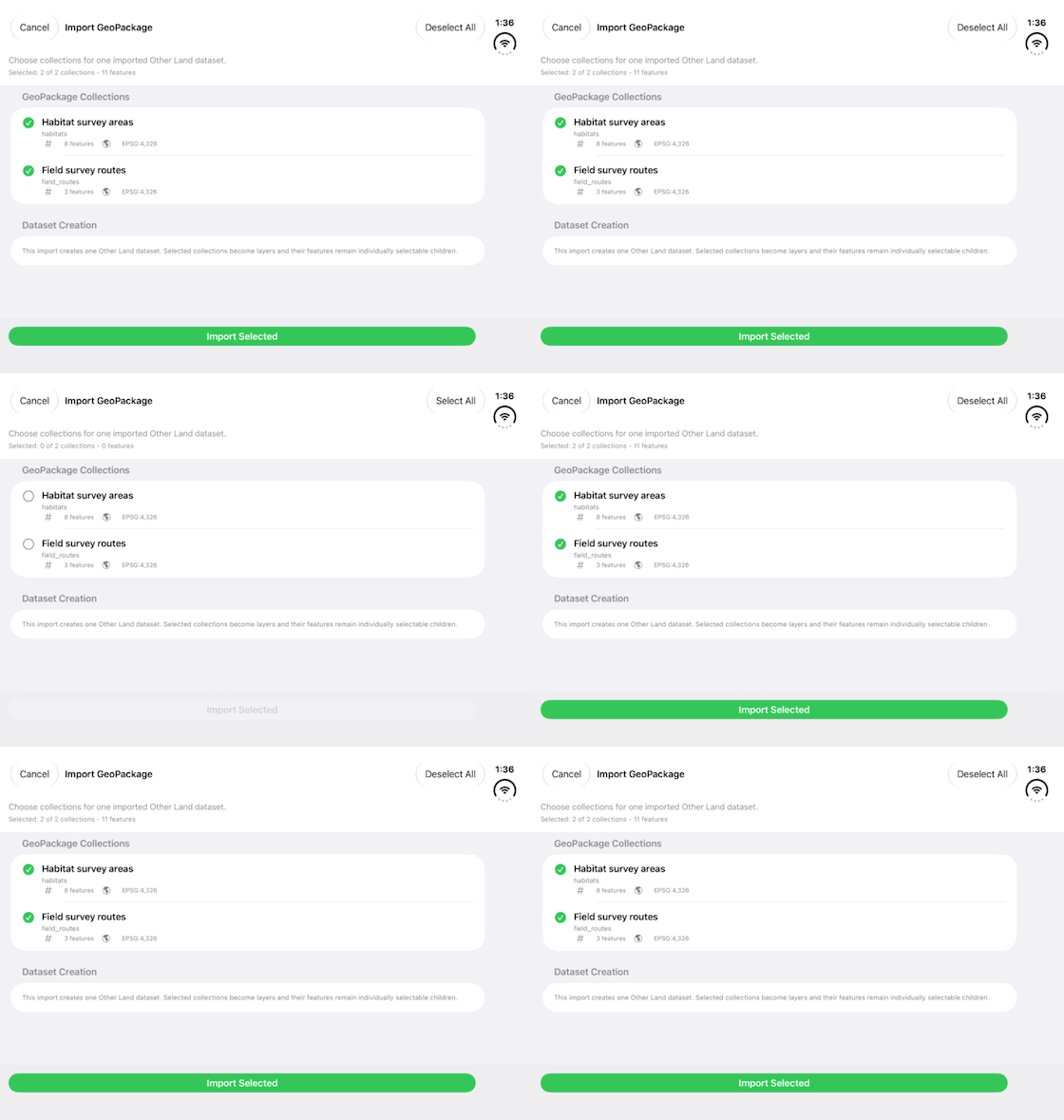
Watch GeoPackage collections change between selected and deselected. Follow the steps to review their coordinate system and choose what to import.Open the looping GIF
Follow along
One step at a time.
Choose supported feature collections, inspect the imported dataset and export a complete package for the next handoff.
Start an import
Open Lands → More Land Actions → Import Land Data. Choose a GeoPackage file or a supported GeoPackage package.
Choose collections
In Import GeoPackage, review collection names, feature counts and EPSG labels. Use Select All or Deselect All, then tap Import Selected.
Inspect the dataset
Open the resulting Other Land dataset. Check child layers, individual features, geometry and attributes. Review warnings and skipped features.
Export for the next handoff
Open Export Data and Share → Export → Export GeoPackage. Imported datasets use Export Complete GeoPackage. Save the generated package and retain included companions.