
Build and share a mapped form
Forms
Create your questions, choose which map belongs with each response and invite existing iLands users to answer.
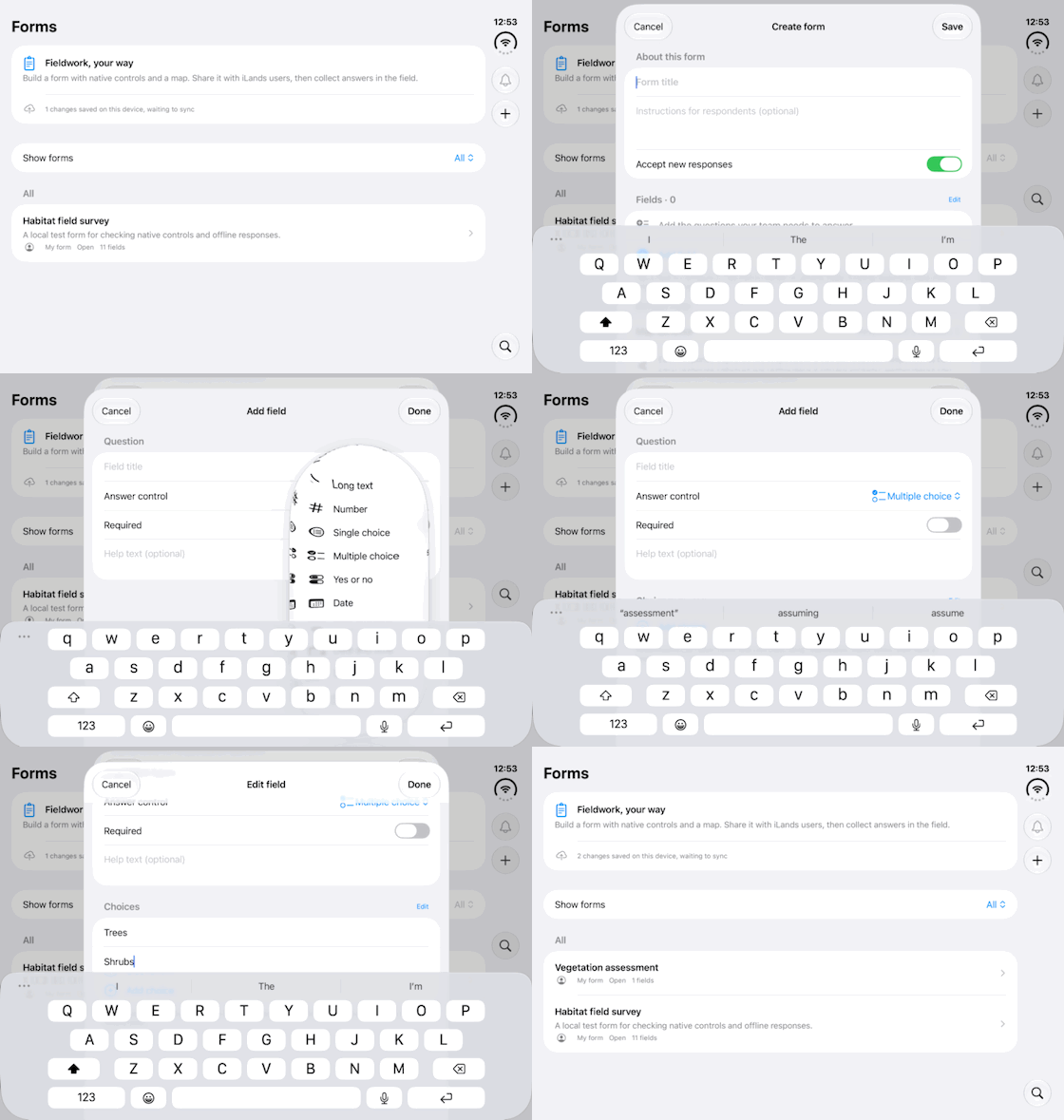
Walkthrough paused.
Follow the written steps or select Play walkthrough to watch the example.
Watch the form builder in a fictional example, from its title to a multiple-choice question. Follow the steps to create your own survey.Open the looping GIF
Follow along
One step at a time.
Create your questions, choose which map belongs with each response and invite existing iLands users to answer.
Create the form
Open Forms—under More on compact iPhone layouts—and tap plus. Enter Form title and optional Instructions for respondents.
Choose clear answer controls
Tap Add field → Answer control. Set Field title, Help text and Required as needed. Add unique choice labels for choice questions, then Done. Edit lets you reorder or remove fields.
Decide which location belongs in each response
In Default map, choose Respondent’s location for a captured GPS point, or Author’s map geometry for a static Point, Line or Polygon. Recipients cannot alter the author’s static geometry.
Preview, publish and maintain
Tap Preview form; preview answers are not saved. Turn on Accept new responses when ready and Save. Return through Manage form → Edit form to maintain questions and collection settings.
Invite the intended existing user
Open Manage form → Share with iLands users. Enter the iLands account email and tap Add recipient. Sharing needs connectivity and sync. The recipient finds it under Shared with me.
Respond and verify delivery
Tap New response, complete required answers and the map, then Save draft on this device or Submit response. Check sync status. Reopen work with Continue draft or Edit my response; use Save changes for a submission.