
Choose and configure form questions
Forms
Use the answer control that fits the information needed, with clear labels and guidance.
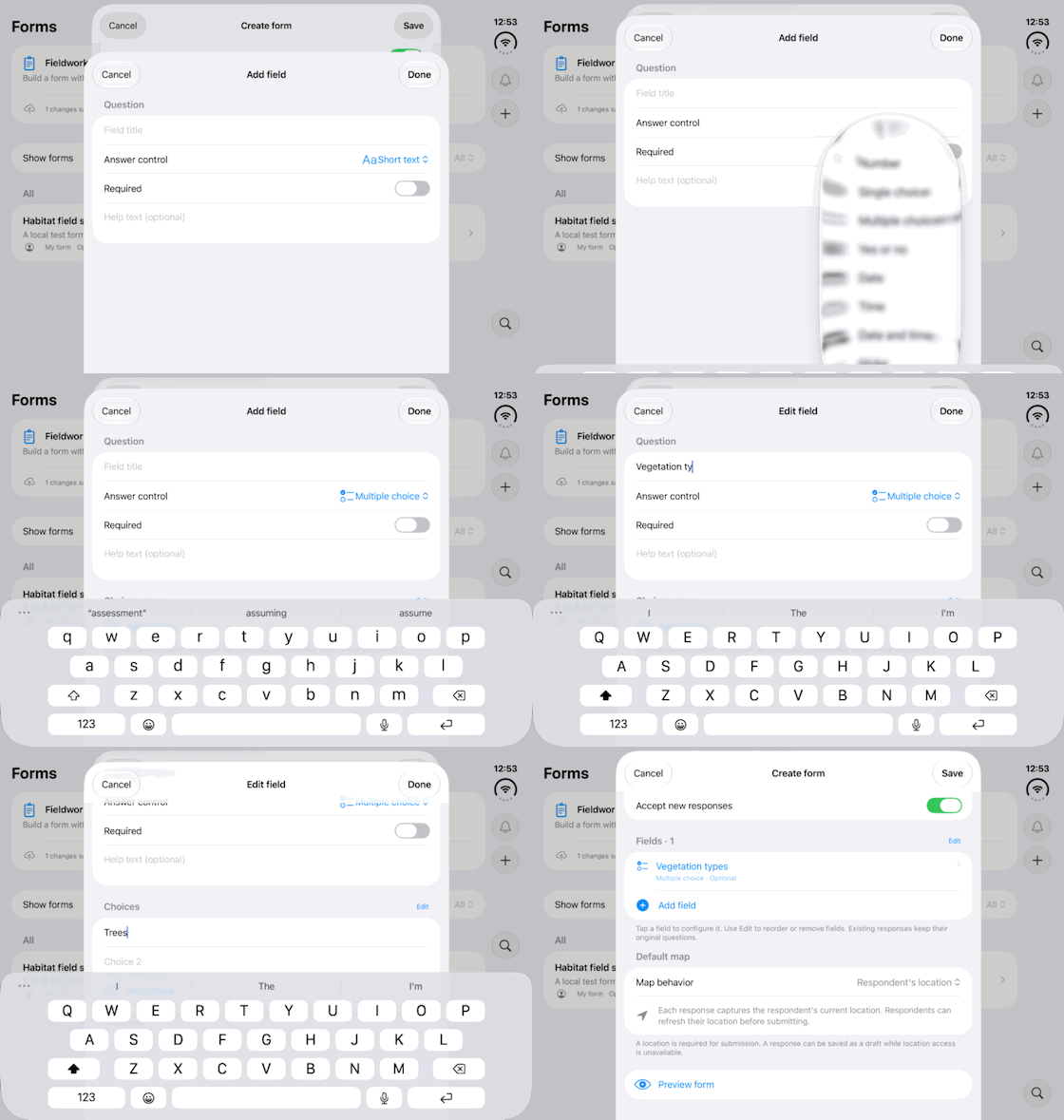
Walkthrough paused.
Follow the written steps or select Play walkthrough to watch the example.
Watch a multiple-choice field take shape with Trees and Shrubs as example options. Follow the steps to choose answer types for your survey.Open the looping GIF
Follow along
One step at a time.
Use the answer control that fits the information needed, with clear labels and guidance.
Tap Add field
In the form builder open Answer control.
Choose a control
Use Short text, Long text, Number, choices, dates, ranges, contact fields, media, 3D model (USDZ), Signature or Label or instructions as appropriate.
Configure the question
Set Field title, Help text and Required. For choices, use Add choice and unique labels; configure ranges and attachment counts where offered.
Keep and organize it
Tap Done, then Edit to reorder or remove fields. Preview form to inspect the result.