
Save, submit and edit a response
Forms
Keep incomplete work private on the device and check synchronization when submitting.
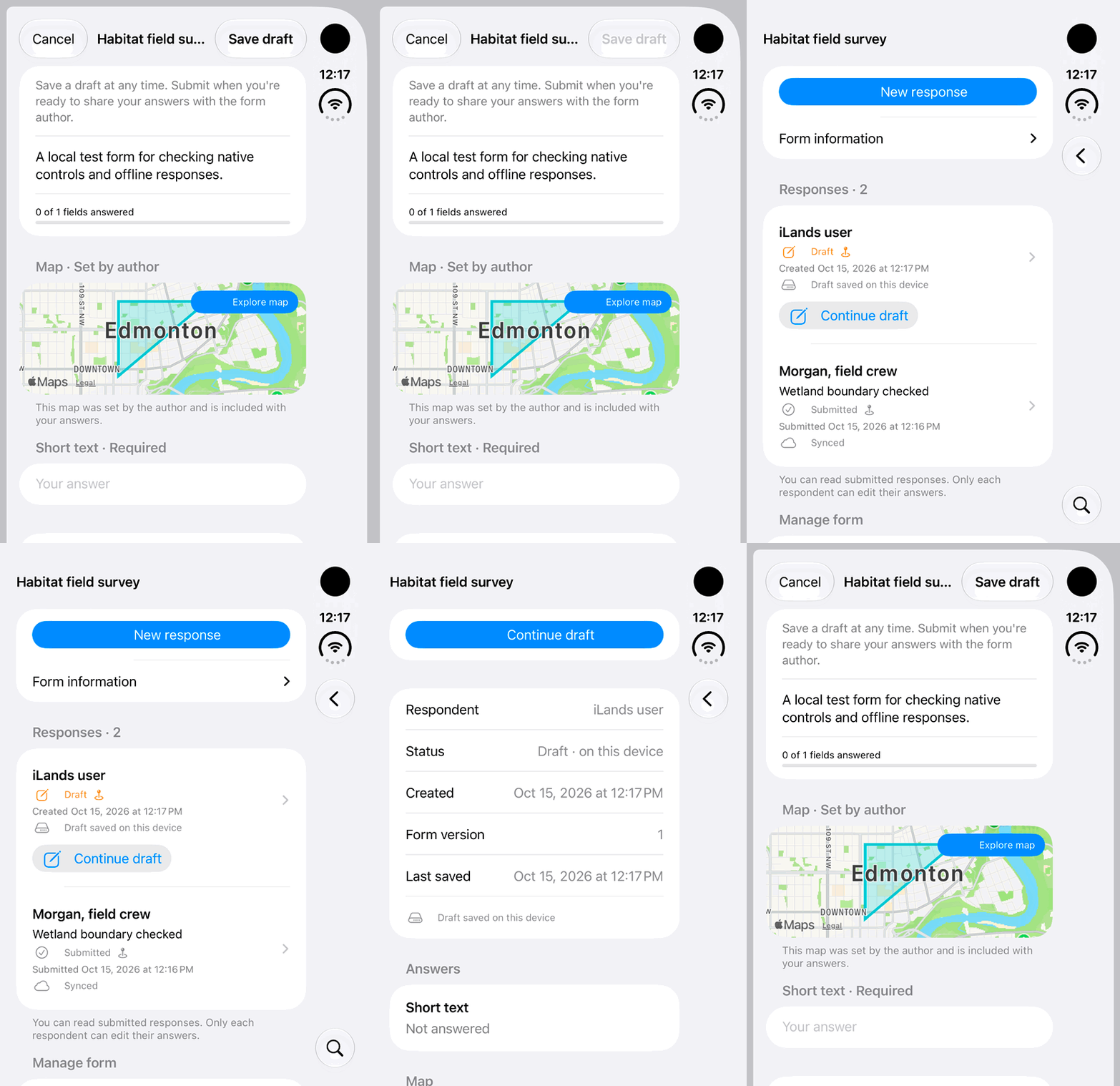
Walkthrough paused.
Follow the written steps or select Play walkthrough to watch the example.
iPhone Duo: save an empty fictional response draft on this device, then reopen it to continue. No answers are entered, survey submitted or cloud synchronization demonstrated.Open the looping GIF
Follow along
One step at a time.
Keep incomplete work private on the device and check synchronization when submitting.
Choose New response
Open an accessible published form and create a separate response.
Complete answers and map
Fill required questions and the configured map. Use Save draft or Save draft on this device for incomplete work.
Submit and check sync
Tap Submit response when ready. Local saving occurs first and attachments upload before final sync; use Retry sync if offered.
Reopen your work
Use Continue draft or Edit my response, then Save changes for an existing submission. Use New response for another separate record.