
Add context with Presentation Canvas
Maps and stories
Arrange notes, media and links around a map to explain what a place means.
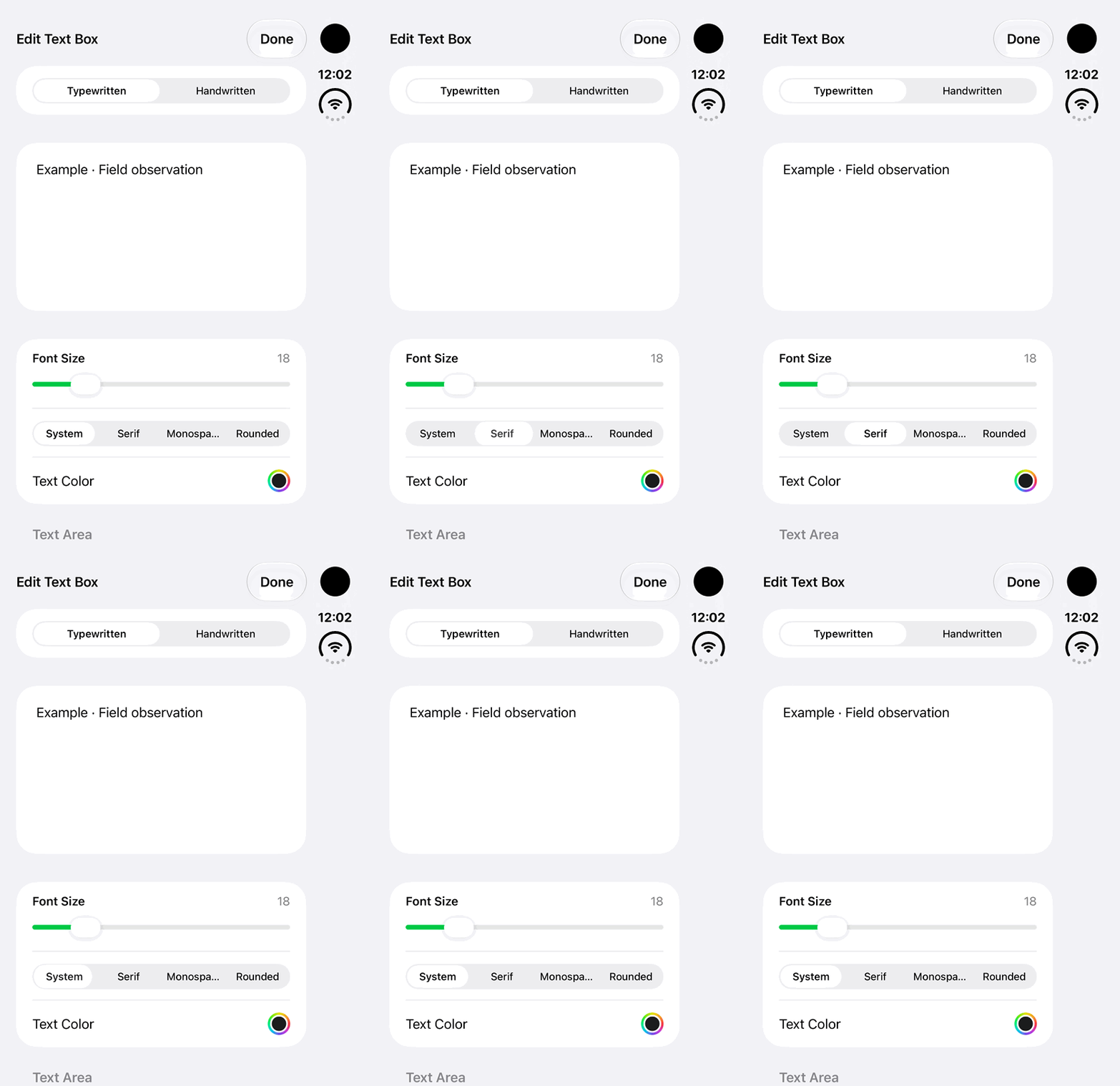
Walkthrough paused.
Follow the written steps or select Play walkthrough to watch the example.
iPhone Duo: select and restore a text-box font option in an unsaved fictional Presentation Canvas draft. No Done, workspace save or finished presentation is demonstrated.Open the looping GIF
Follow along
One step at a time.
Arrange notes, media and links around a map to explain what a place means.
Switch Explore to Create
Use the interaction-mode control on Map.
Add presentation content
Add the available photo sticker, note, text box, video, link or drawing.
Arrange clearly
Position content around the important map features and review overlap.
Tap Save Changes
Save the workspace. Capture selected views in Story Maps when needed.