
Import and view a 3D Site Model
3D sites
Keep a supported USDZ model attached to its land and verify local availability.
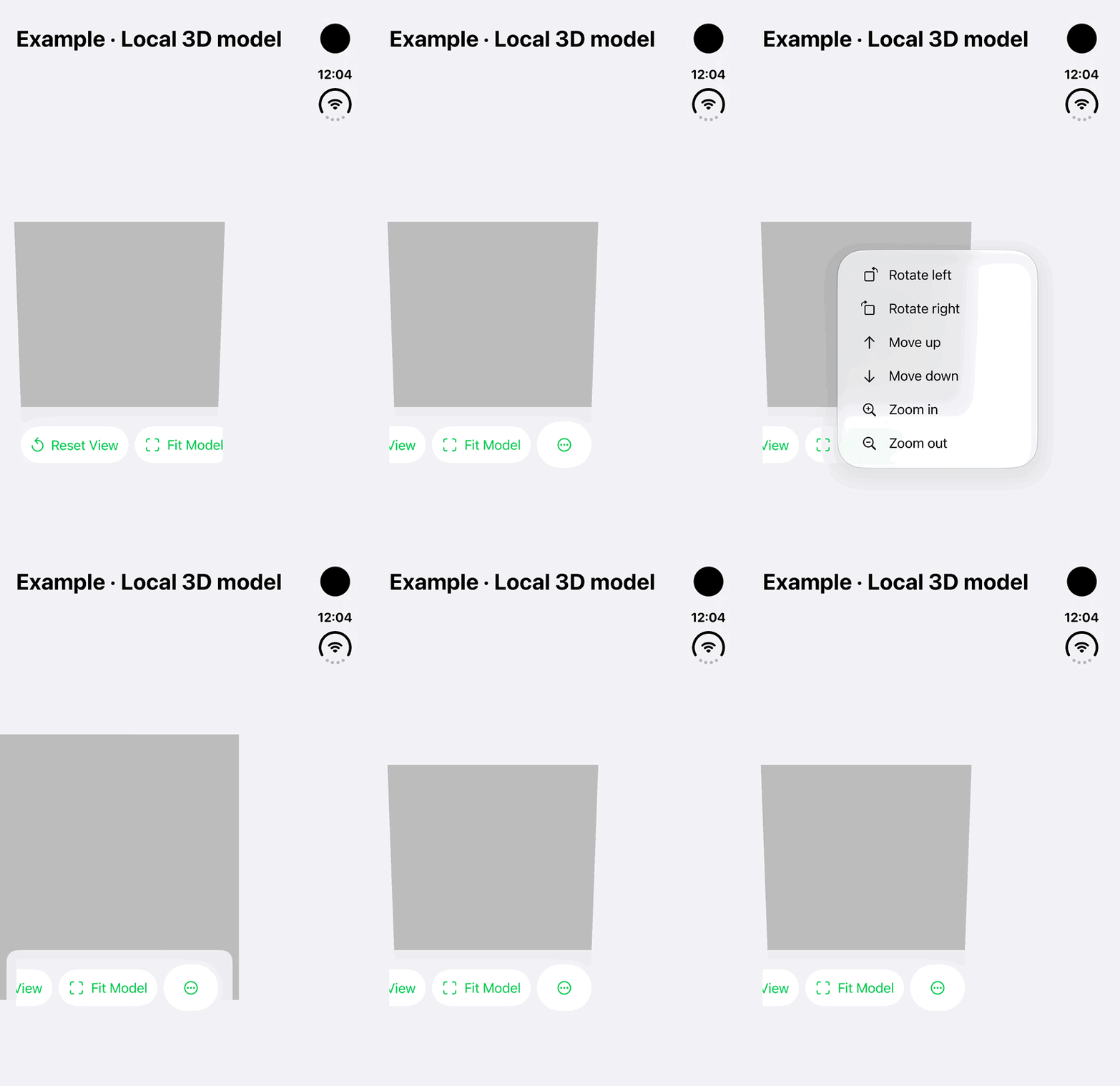
Walkthrough paused.
Follow the written steps or select Play walkthrough to watch the example.
iPhone Duo: zoom and fit an existing fictional local model in the native viewer. No model capture, import, placement change or saving is demonstrated.Open the looping GIF
Follow along
One step at a time.
Keep a supported USDZ model attached to its land and verify local availability.
Open 3D Site Models
Open the section in an accessible land where available.
Choose Import USDZ Model
Use the plus control and choose a supported USDZ file from Files.
View the model
Open the imported model and review its placement and accuracy context.
Keep it available locally
For remote content, use Make Available Offline or Keep Available Offline where offered before fieldwork.